

Share This Article
The first thing to check is whether you are logged into the correct account on 1xBet, with your verification status confirmed. This matters because a pending verification request will block some payment records from appearing until the account check is finished. Open the app, tap the menu icon in the top corner, then tap your profile picture or account name. Confirm the account number matches the one you use for deposits before you start browsing any history screen.
What you need before you open your history
Before you dive in, gather a few things so the process runs without interruption. Most of this takes a minute or two on Wi-Fi, and the rest depends on your own account state.
- An active 1xBet login, with the password handy if the app has timed you out.
- A verified account profile, since unverified accounts hide certain payment entries.
- Your phone connected to a stable network, so the history page loads fully.
- The 1xBet app installed from the official source, not an outdated APK.
- A rough idea of the dates you want to inspect, to narrow the filter faster.
- Enough free storage so the app refreshes without crashing mid-scroll.
Keep your account details private as you work through these screens, and stay within your own limits while reviewing betting records. If you notice patterns you want to adjust, the responsible gambling resources page offers practical tools for setting boundaries on your activity.
Step by step: reviewing your payment and bet records
The history area in the 1xBet app sits inside your profile menu, and it separates deposits, withdrawals, and settled bets into their own lists. Follow each line below in order, and the whole run takes under a minute once the app has cached your data.
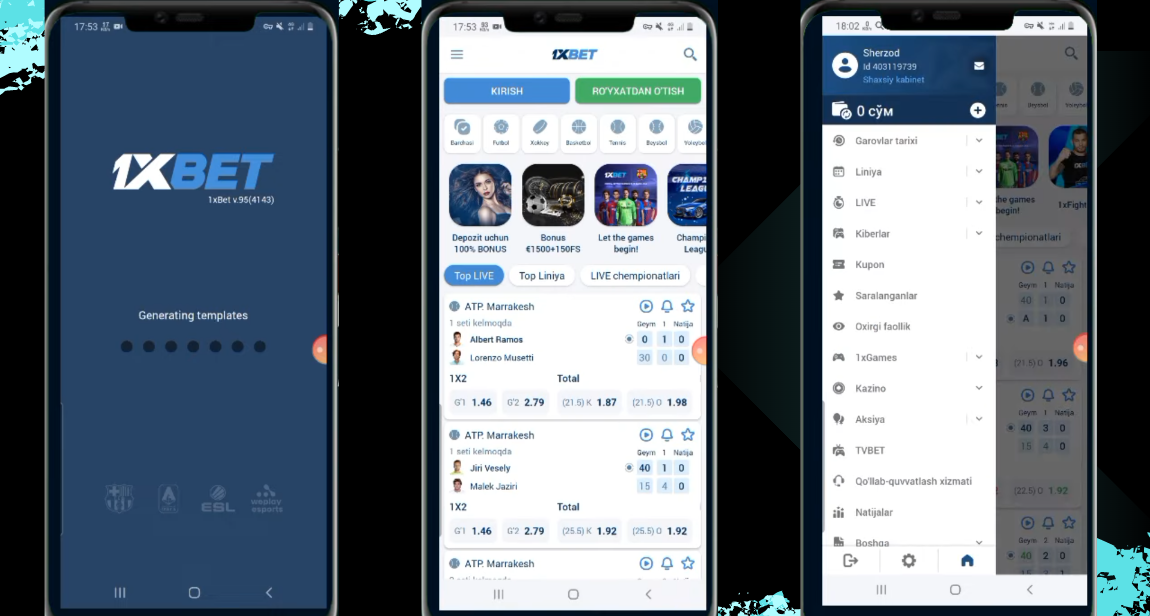
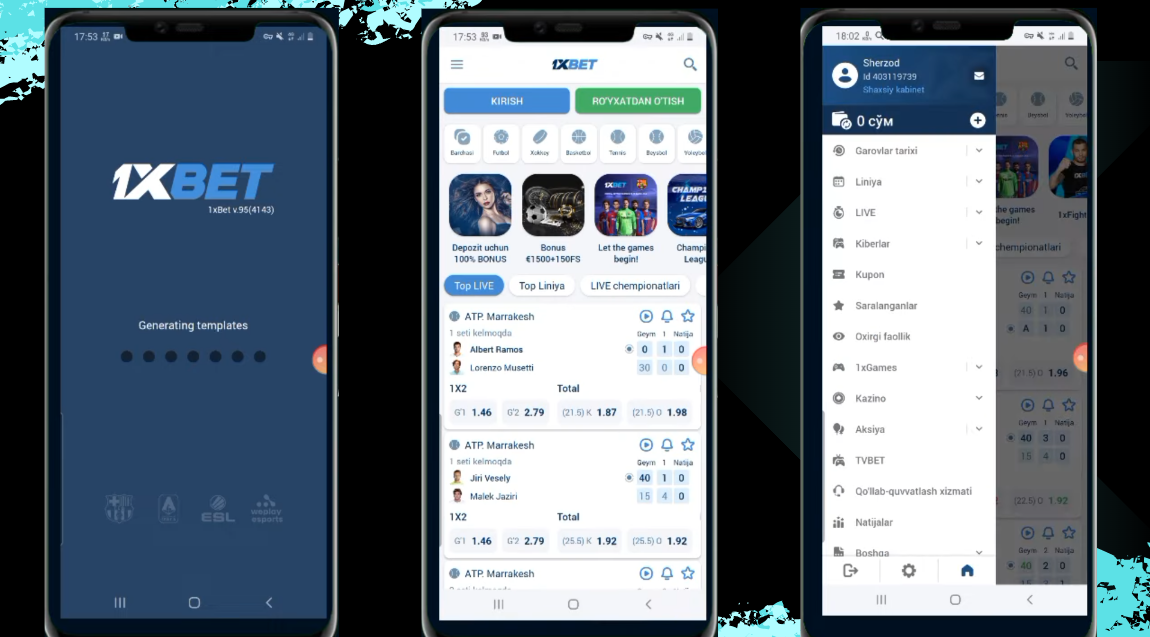
From the lobby, tap the three horizontal lines in the top left corner to slide out the side drawer. The drawer lists sections like Sports, Live, and Promo, with your avatar pinned at the very top. Tap that avatar block to enter the personal cabinet, which loads in about two seconds on a normal connection. Look for the row labeled Financial operations or Payment history, depending on the app build you run.
- Open the 1xBet app and tap the menu icon at the top left of the screen.
- Tap your profile or account name to enter the personal cabinet.
- Select the payment or transaction section, sometimes labeled as deposit history.
- Switch the filter tabs to view deposits, withdrawals, or bets separately.
- Set a date range if you need a specific period rather than the latest entries.
- Tap any single row to open the details view for that transaction.
- Read the status column to confirm whether the entry is pending, approved, or rejected.
- Scroll to the bottom of the list to load older records if they are hidden.
- Exit back to the main menu by tapping the back arrow when you are done.
Inside the history screen, three tabs sit along the top edge: Deposits, Withdrawals, and Bets. Each tab loads its own list, and the first page usually shows the twenty most recent items. The date picker appears as a small calendar icon on the right side of the tab bar. Open it to choose a custom range, then tap Apply to reload the view.
Every row displays a short summary: amount, method, status badge, and date stamp. Status badges read Approved in green, Processing in orange, or Rejected in red. Tap a row to expand the full details view, which includes the transaction ID and reference number. Copy that ID if you later need to contact support about a missing entry.
The three most common problems
Transactions missing from the list
Some users open the 1xBet app expecting every deposit to appear right away, yet a pending payment can stay out of the ledger for a short while. The 1xBet app usually refreshes the history page when you pull the list down. If nothing shows up after a few minutes, it is worth checking that your internet connection is stable. Waiting too long before refreshing is often the only reason the entry looks absent.
A cold start of the app can also clear a stale cache that hides older rows. Close the 1xBet app from the recent apps screen, then reopen it and revisit the cabinet. This forces a fresh request to the server, and the list usually fills in within ten seconds. Repeat the pull-to-refresh gesture once more if the first attempt returns nothing new.
Withdrawals stuck at processing
A withdrawal request in the 1xBet app may sit in a processing state until the operator checks your details. This is normal and usually clears once the account verification is complete. Users who skip verification before requesting a payout often see the status change very slowly. Keeping your profile documents ready helps the 1xBet app move the request along without extra prompts.
Standard internal review windows run roughly one to three business days for most payment methods. Card payouts often clear faster than bank transfers, which can add a few extra days at the bank. Watch for a system message in the notifications panel asking for a selfie or an ID scan. Supplying that file right away usually shortens the wait considerably.
Settled bets showing as open
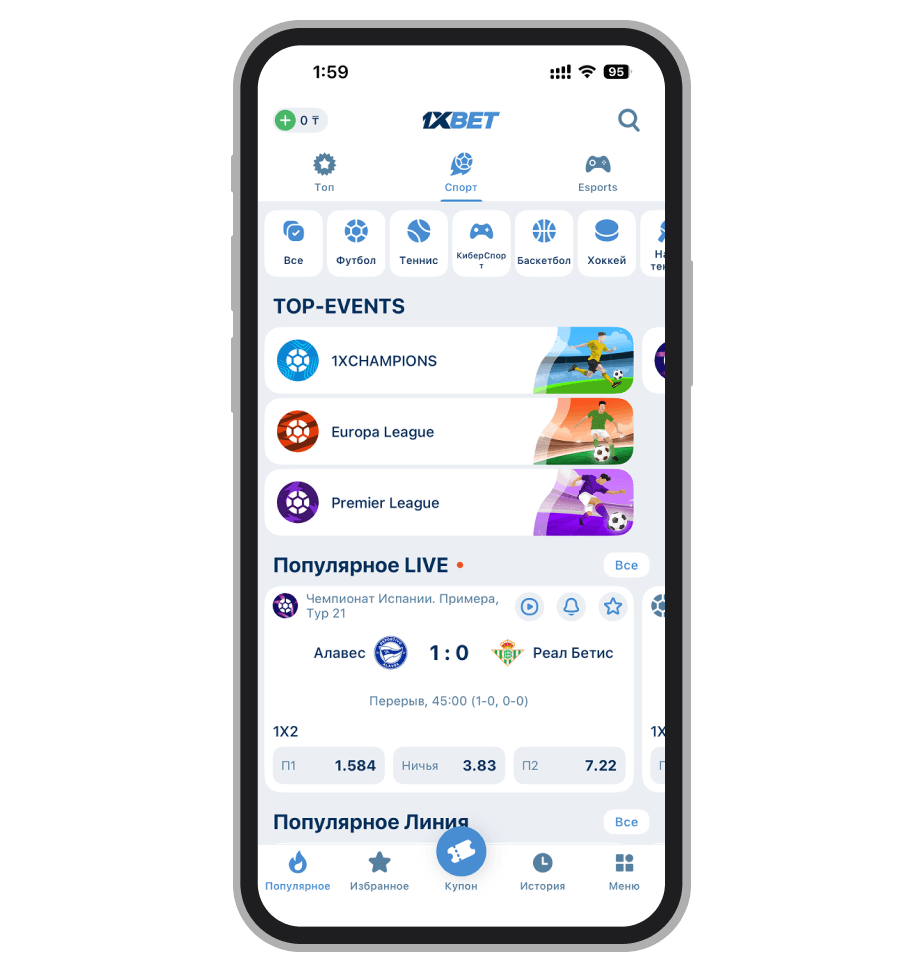
After a match ends, an accumulator in the 1xBet app sometimes remains open for a few minutes while the provider confirms the result. The bet slip page will update on its own once the outcome is locked. Refreshing the bet slip too often does not speed this up. If the status stays open for long, checking the match page usually gives the clearest picture.
Single bets on high-profile leagues typically settle within one to five minutes of the final whistle. Lower-league or virtual events can take longer, sometimes up to half an hour, because feed data arrives in batches. Open the bet slip from the menu, then tap the specific event to see the current scoring feed. That feed shows live points, which confirm when the result has been officially locked.
Practical tips that save time
- Open the payment history screen from your profile menu, not from the main lobby, when you need a quick record.
- Use the filter buttons above the list so only deposits, withdrawals or bets appear in the current view.
- Complete verification before your first withdrawal so the 1xBet app does not pause the request halfway through.
- Keep the notification switch on in the settings so settled bets and completed payouts reach you as alerts.
- Tap the refresh icon at the top of the history page instead of closing and reopening the application.
- Check your bet slip after an accumulator finishes to confirm that every leg shows the settled result.
- Use a stable Wi-Fi connection when you review payments, because a weak signal can delay the list update.
- If you need the application file, visit the 1xbet android app direct link page, where the 1xBet app is listed with its current build.
FAQ
How long does a deposit take to show up in the 1xBet app?
Most card and wallet deposits appear in the 1xBet app within a couple of minutes. If the list still looks empty after five minutes, pull the page down to refresh it once more.
Why is my withdrawal marked as processing for hours?
The 1xBet app holds a withdrawal until account verification is confirmed. Completing the document check in the profile usually moves the status to paid.
Can I filter the history to see only my bets?
Yes, the history page has tabs for deposits, withdrawals and bets. Tap the bet tab and the 1xBet app shows your settled and open slips in one list.
What should I do if a settled bet still looks open?
Wait a few minutes and pull the list down to refresh the page. If the status does not change, open the match details from the bet slip for the latest result.
